Tripo AI: Create 3D Models with AI
Tripo AI is an AI-powered 3D model generation platform designed to help creators turn text descriptions and reference images into 3D assets. This guide explores how it works, potential use cases, and the questions worth checking before using generated assets in production.
Overview
Tripo AI is a web-based generator that produces 3D models from a written description or a reference image. Instead of starting from a cube in a modeling package, you start from a generated mesh and decide what is worth keeping.
With text-to-3D, you describe an object in words. With image-to-3D, you supply a picture and the tool infers a three-dimensional form, including the sides the picture does not show. Both give you a draft, and how close that draft gets depends heavily on the input.
For game developers, the likely fit is early in production: blocking out a level with stand-in props, testing a character idea, or making a starting point for an artist to refine. That makes it most relevant to indie developers, 3D artists, and technical creators who can judge a mesh and fix what needs fixing.
Features
Each one is labeled to show whether we've tried it ourselves or have only seen it reported.
Text-to-3D
Describe an object in a written prompt and receive a generated 3D model.
Reported, not testedImage-to-3D
Use a reference image as the input. We ran four images through this workflow, and the models are below. Third-party listings also mention multiple images and sketches as inputs, which we haven't tried.
Tested by us3D asset prototyping
Try several versions of an idea quickly before committing modeling time to one of them.
Reported, not testedGame development workflows
Listings describe retopology, auto-rigging, and animation steps. How well these hold up in a real game project is what our testing will look at.
Reported, not testedModel export and further editing
We exported GLB files for the models on this page. Third-party listings also name FBX, OBJ, USD, and STL, which we haven't checked, and some say formats depend on your plan.
Tested by us
From reference image to 3D model
We ran these four images through Tripo's image-to-3D workflow. The images are the inputs, and the model beside each one is what came back. Load a model to rotate and zoom it, including the sides the image doesn't show.
Low-poly dragon
Reference image 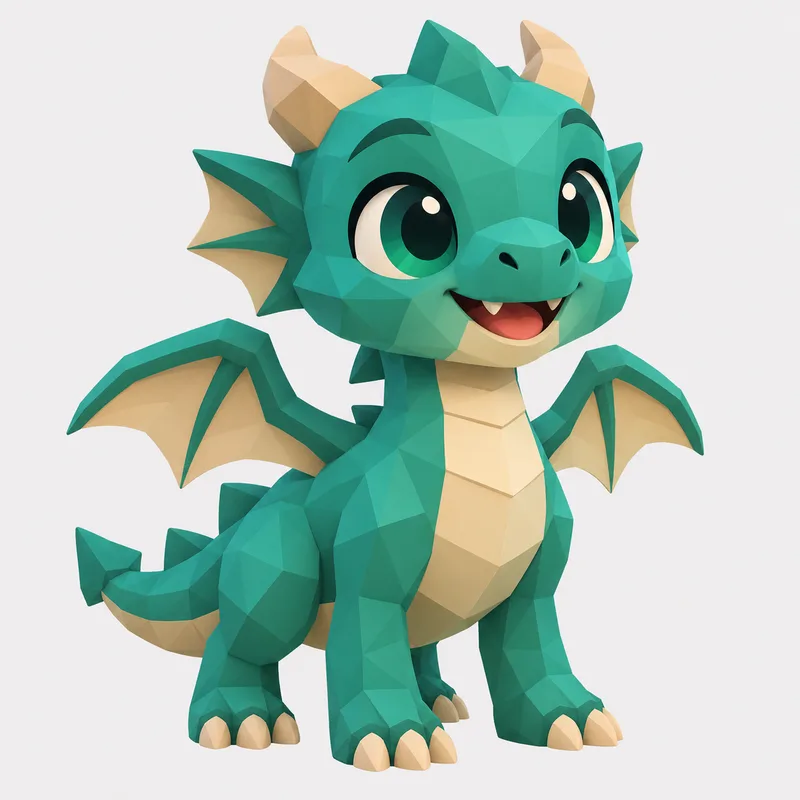
3D model from Tripo 
Fantasy treasure chest
Reference image 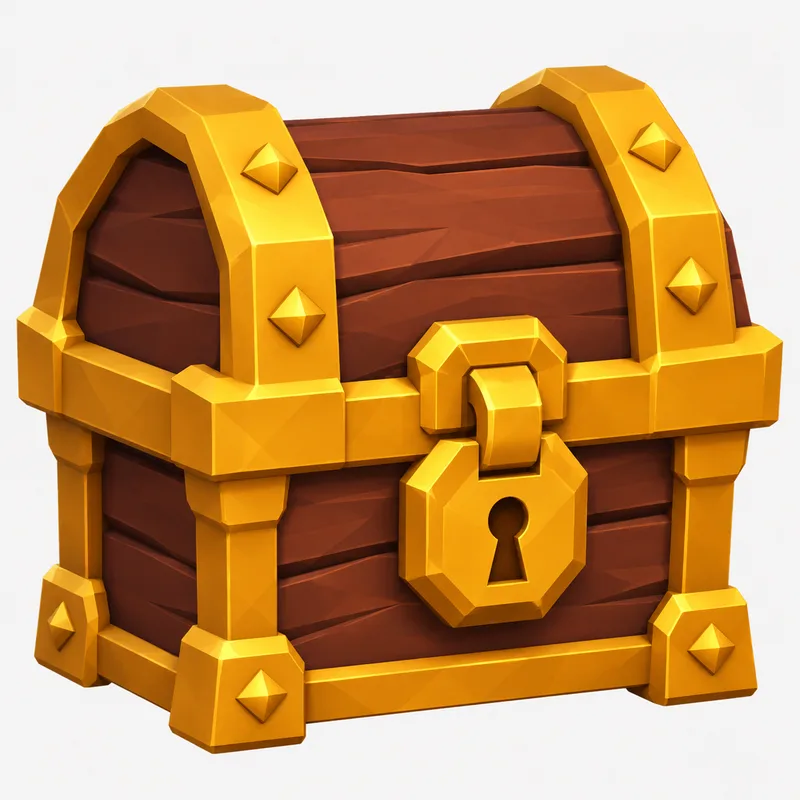
3D model from Tripo 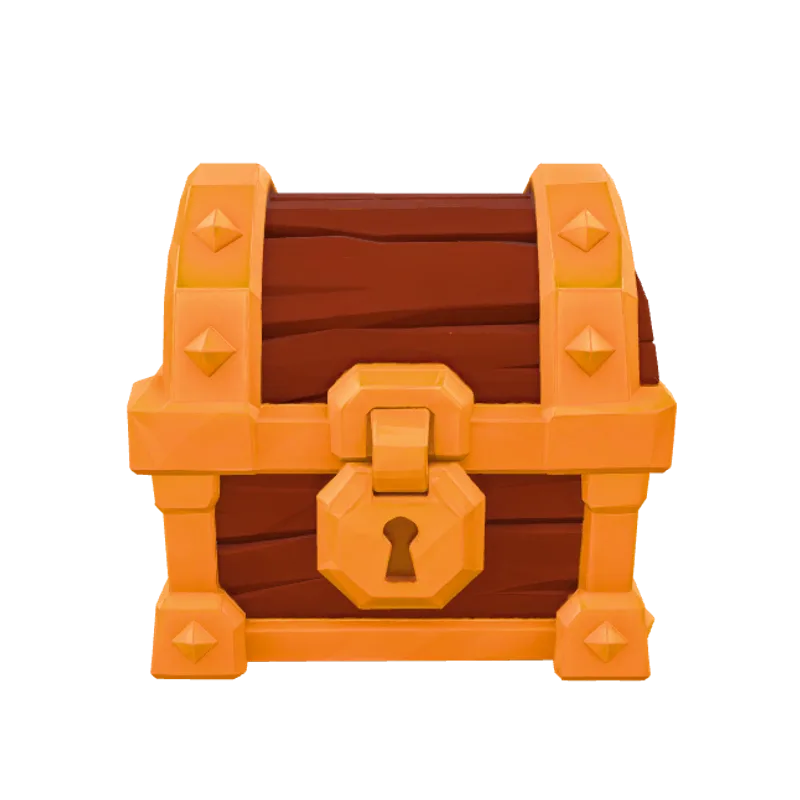
Sci-fi robot
Reference image 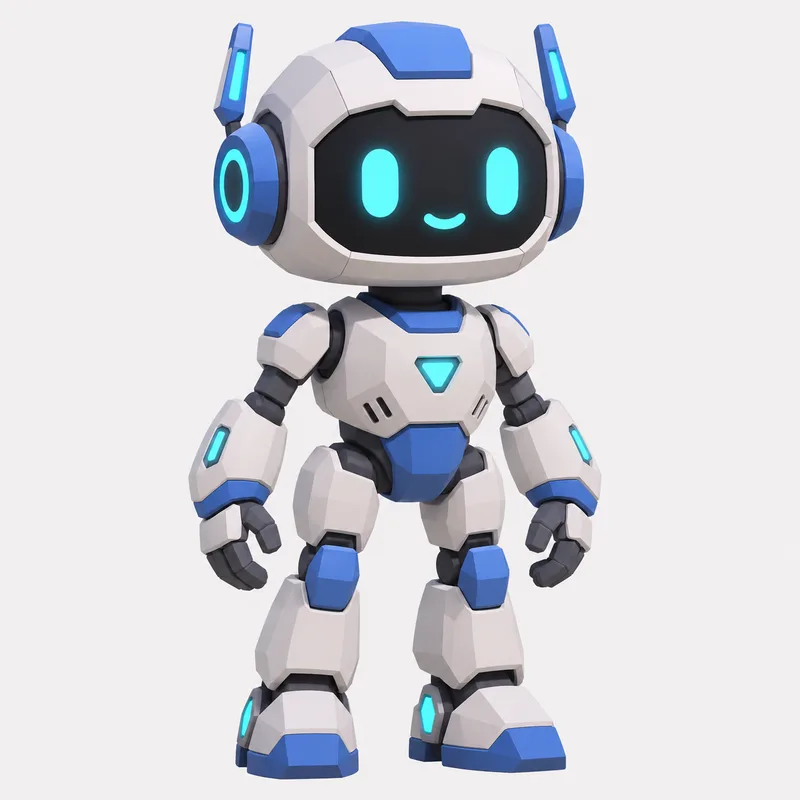
3D model from Tripo 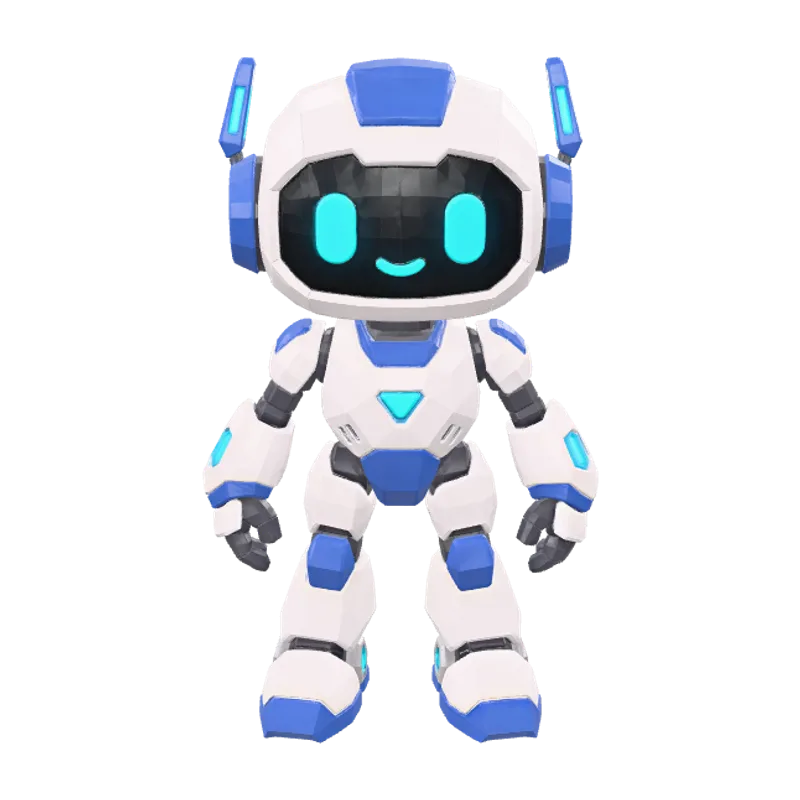
Medieval cottage
Reference image 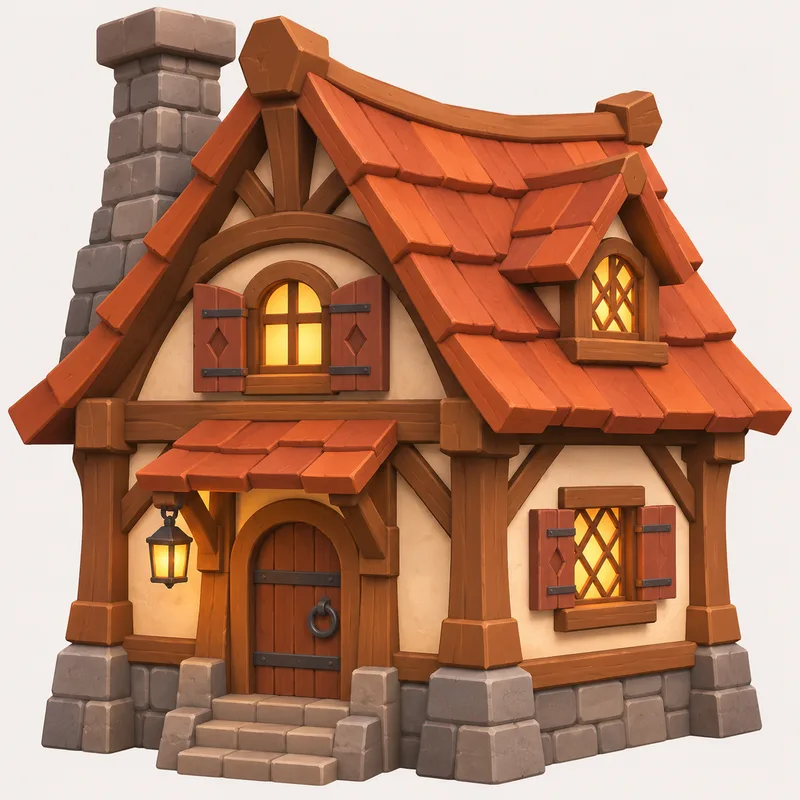
3D model from Tripo 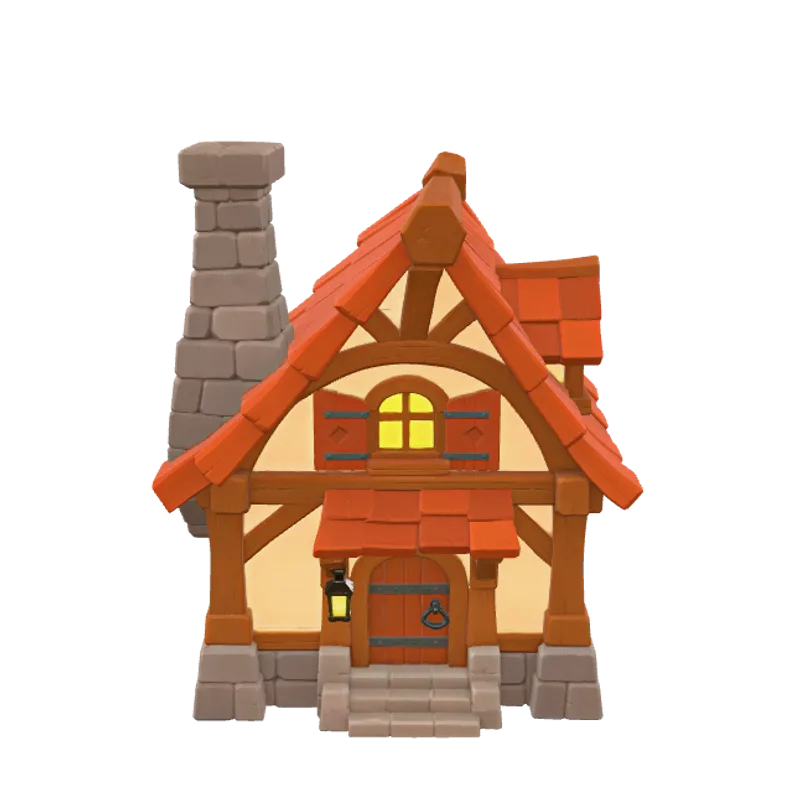
About these previews
Each GLB we exported from Tripo was about 59 MB, with roughly 1.9 million triangles and 4K textures. That's too heavy to load on a web page, so the copies here are reduced to about 250,000 triangles and 2K textures, around 8 MB each. Your exports may differ depending on your settings.
Either size is high for many real-time game assets, so plan to check and optimize a model before you put it in a game.
From idea to imported model
This is the general process. Steps marked below depend on options in the app, and we haven't confirmed all of them yet.
Prepare a text prompt or reference image
Decide what the asset is for, then describe one object or find a clean image of it. A plain background and a clear silhouette give the generator less to misread.
Open Tripo AI
Sign in on the official website. Check your remaining credits or generation limits before you start a batch of tests.
Choose the generation workflow
Pick text-to-3D or image-to-3D to match your input. Note any model version or quality options, since they can affect both the result and what it costs you.
Reported, not testedExact options may differ in the app.
Generate and inspect the result
Orbit the whole model before judging it. Look at the back and underside, where generators have the least information to work with.
Refine the model as supported
Use whichever refinement tools the app offers, or adjust your prompt and generate again. Change one thing at a time so you can tell what helped.
Reported, not testedExact options may differ in the app.
Export in a supported format
GLB is a sensible default for moving a model between tools, and FBX is common for rigged assets. Check which formats your plan actually offers.
Reported, not testedExact options may differ in the app.
Import and inspect it in a 3D editor or game engine
Open it in Blender or your engine, then check its scale, triangle count, normals, UVs, and textures. A preview in the browser can't tell you how it behaves in your project.
Where it could fit in game development
Any of these may need additional work on geometry, optimization, topology, textures, or rigging, and you'll need to confirm the license covers your use.
- Prototyping game characters
- Test a character's silhouette and proportions in-game before paying for final art. Animation will likely need retopology and rigging work.
- Creating environmental props
- Static props such as crates, rocks, and furniture are the lowest-risk place to start, because they don't deform. Polygon counts still need a check, especially with many copies in a scene.
- Generating concept assets
- A rough 3D model lets you look at an idea from every angle and share it with collaborators, even if the final asset gets rebuilt by hand.
- Testing models in Roblox workflows
- Bring a test asset through Roblox Studio's 3D Importer early, since mesh and texture limits may require you to simplify it first.
- Testing models in Unity or Blender
- Blender is the natural place to clean up a mesh. In Unity, check the material setup for your render pipeline and how the asset performs at real camera distances.
Our guides cover the follow-up work: how to check a generated model and how to import one into Blender, Unity, and Roblox.
Pricing
Tripo offers subscription options and usage-based generation limits. Visit the official pricing page for current plans, credits, and included features.
We haven't checked current plans yet, so we don't list prices here.
Pros and limitations
Potential benefits
- Rapid concept exploration, since you can try several directions before modeling any of them.
- A lower barrier to 3D prototyping for developers who are not trained modelers.
- Useful starting points for further editing in a 3D package.
Limitations to plan for
- Generated meshes may need cleanup before they are usable.
- Results vary by input, so expect to regenerate and adjust your prompts.
- Suitability for a particular game engine has to be tested in that engine.
- Animation and rigging requirements may call for additional work.
- Commercial-use rights depend on the terms that apply to you and your plan.
Frequently asked questions
What is Tripo AI?
Tripo AI is a platform for generating 3D models from text descriptions and reference images. People use it as a starting point for game assets, prototypes, and creative projects.
Can Tripo AI create 3D models from images?
Yes. We generated the four models on this page from reference images. The tool has to infer the parts of the object your image does not show, so check those areas closely.
Can generated models be used in games?
They can be a starting point, but treat that as something to test. Check the polygon count, topology, UVs, textures, and scale in your own engine, and confirm the license allows your use. Our inspection checklist covers what to look for.
Can I use Tripo with Roblox?
We haven't tested this yet. In principle, a model exported in a format Roblox Studio accepts can go through its 3D importer, as long as it meets Roblox's current mesh and texture limits. Check both ends before planning around it.
Can I edit generated assets in Blender?
Blender imports common formats such as glTF/GLB, FBX, and OBJ, so a model exported in one of those should open for editing. Confirm which formats your Tripo plan can export.
Is Tripo AI free?
Third-party listings describe a free option with limited credits alongside paid subscriptions, but they disagree on the details. Tripo's official pricing page is the only reliable source for what is included today.
Are generated models suitable for commercial projects?
That depends on Tripo's current terms and possibly your plan. Third-party sources often tie commercial rights to paid plans, and they don't all agree on free-tier licensing. Read the official terms before shipping an asset, and get legal advice if the project warrants it.
See how Tripo AI handles your own idea.
One asset you actually need will tell you more than any demo. Run it through the inspection checklist before you build on it.